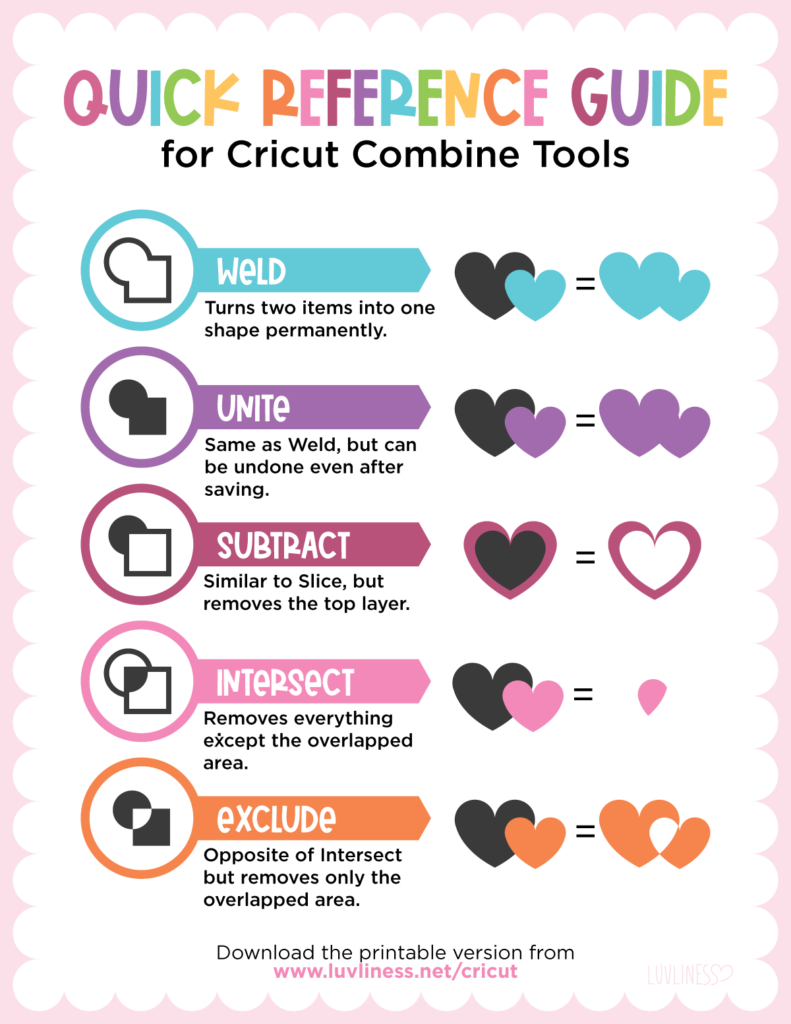
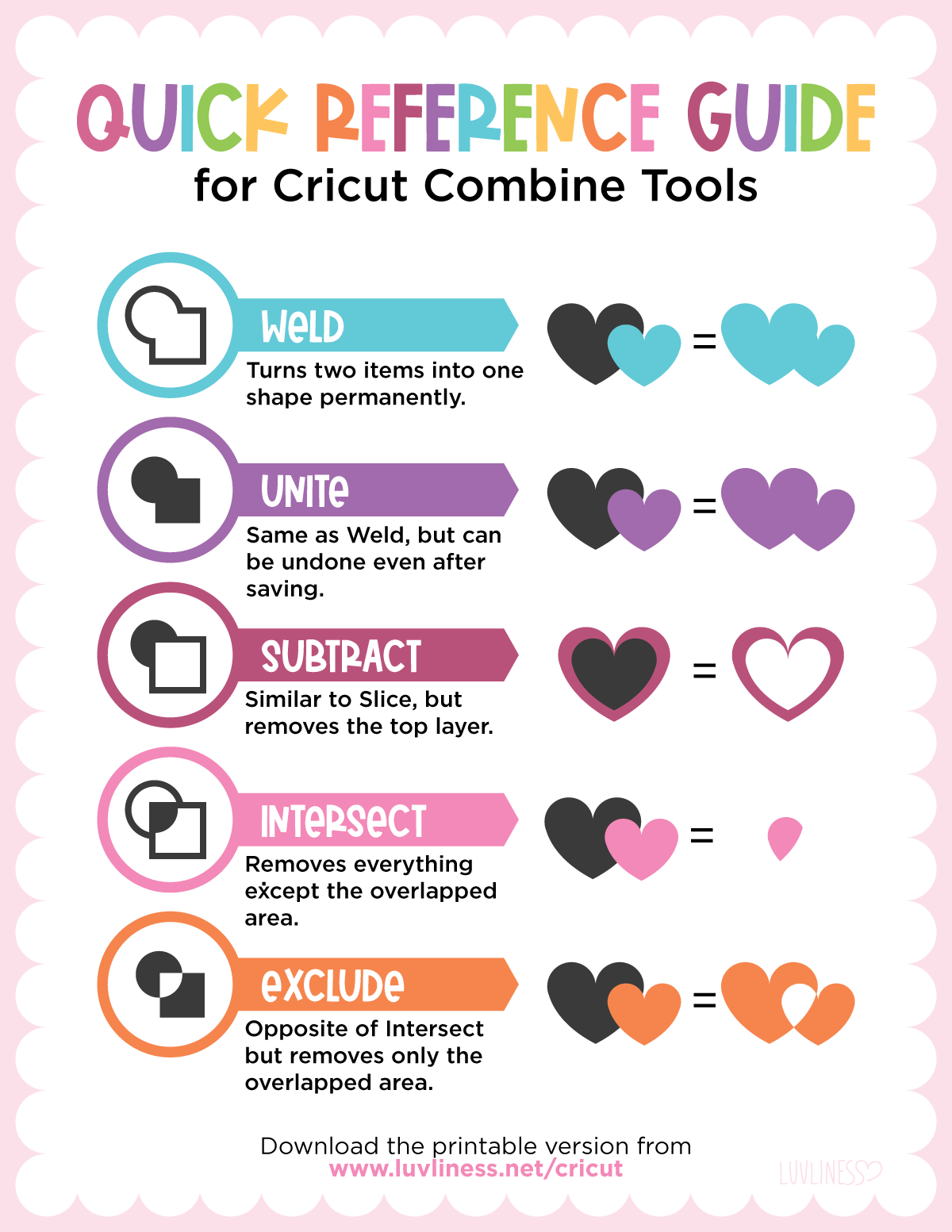
Here’s a FREE DOWNLOAD for you to use as a quick reference when modifying the shapes in Cricut Design Space. Recently they’ve added a drop down menu to manipulate shapes, and sometimes it’s just easier to have a cheat sheet to reference until you get the hang of new things. I mean, that’s what works for me!
Download PDF
Download PNG
▶ Looking for the old version (the pink one?) – you can still download it here.

Become a Luvliness Insider!
Cricut Combine Tools Explained (Weld, Unite, Subtract, Intersect & Exclude)
If you’ve ever stared at the Combine tools in Cricut Design Space wondering what each one actually does – you’re not alone.
Weld? Unite? Subtract? Intersect? Exclude?
They all sound similar, but they behave very differently when you’re layering shapes or building SVG designs.
This quick reference guide breaks down exactly what each Cricut Combine tool does – in simple, visual terms – so you can stop guessing and start designing confidently.
What Are Cricut Combine Tools?
Combine tools in Cricut Design Space allow you to merge, remove, or manipulate overlapping shapes and layers.
They’re essential when:
- Creating custom designs
- Editing layered files
- Simplifying cut lines
- Removing overlapping shapes
- Preparing clean files for cutting
Understanding how these tools work will make your projects cleaner and prevent unexpected cutting results.
Cricut Weld
Weld permanently joins two shapes into one single shape.
Once welded, the shapes cannot be separated.
Use Weld when:
- You want overlapping text to become one solid word
- You want to remove overlapping cut lines
- You’re finalizing a design
Cricut Unite
Unite joins shapes like Weld — but can be undone later.
Unlike Weld, Unite remains editable.
Use Unite when:
- You’re still experimenting
- You may want to edit later
- You’re designing layered projects
Cricut Subtract
Subtract removes the top layer from the bottom layer.
It works similarly to Slice but removes the original top layer.
Use Subtract when:
- Creating cutouts
- Removing shapes from backgrounds
- Designing hollow text or frames
Cricut Intersect
Intersect keeps only the overlapped portion of two shapes.
Everything else disappears.
Use Intersect when:
- You only want the shared shape area
- Creating detailed layered effects
- Designing precise shape overlaps
Cricut Exclude
Exclude removes only the overlapped portion of two shapes.
It’s essentially the opposite of Intersect.
Use Exclude when:
- You want to remove overlap but keep the outer pieces
- Designing decorative cut shapes
If you’ve found this to be helpful, consider sharing it for others 🙂
– Stephanie